Store
Members exchange coins for vouchers, items and trading rewards you fulfil. Choose the products, coin prices, redemption methods and rules. The Store takes the coin payment and records the order.
Last checked 29 Sep 2026
- Category
- Spend. Members pay coins; the Store does not issue coins by itself.
- Your cost comes from
- Items, shipping, voucher codes, and any trading credit or withdrawable funds your systems grant.
- Coins are deducted
- At purchase. Your team or integration handles any later fulfilment.
What members see#
Members browse the Store in your community or through its widget in your client portal.
- Browse categories, search and product cards with prices in coins.
- Open a product. If it offers redemption methods, choose one and fill in its fields, such as a trading account number.
- Confirm the purchase. Coins leave the balance and one voucher code is taken from that product's stock.
- See the confirmation and order in Purchase History. Its starting status follows your product or category settings, otherwise New Purchase. The platform also sends a purchase email.
- Open Order Details for the voucher code and expiry. Your team or integration handles any further fulfilment and updates the status; orders need not pass through every stage.
From the product
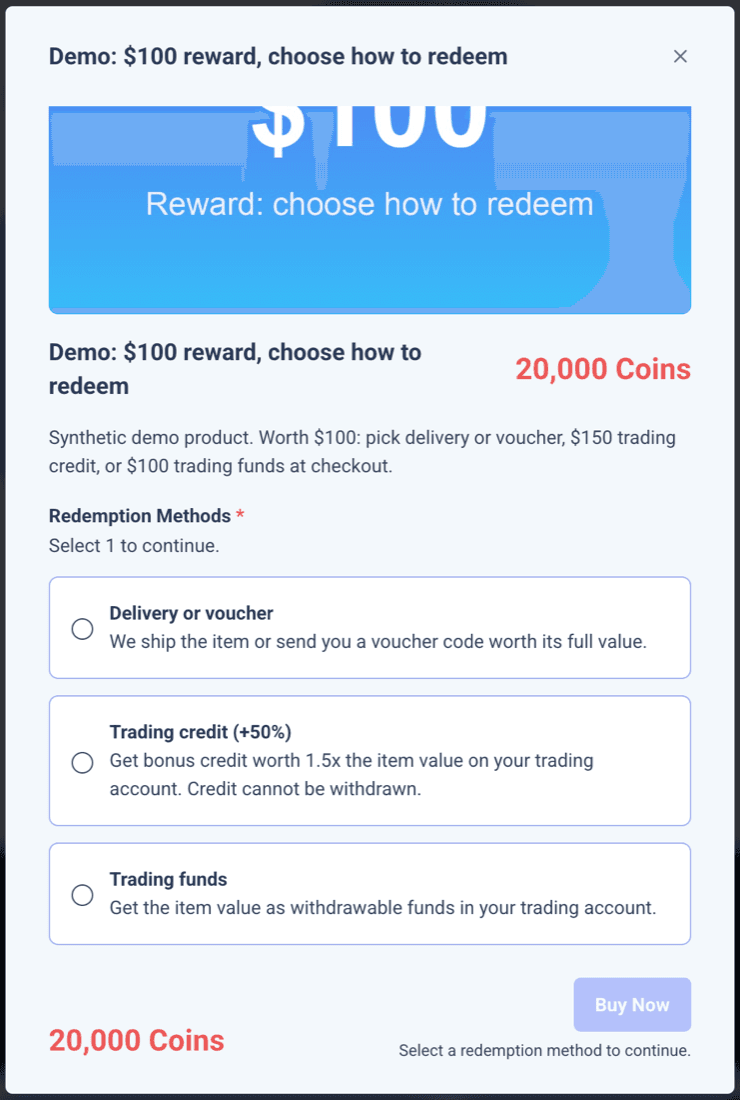
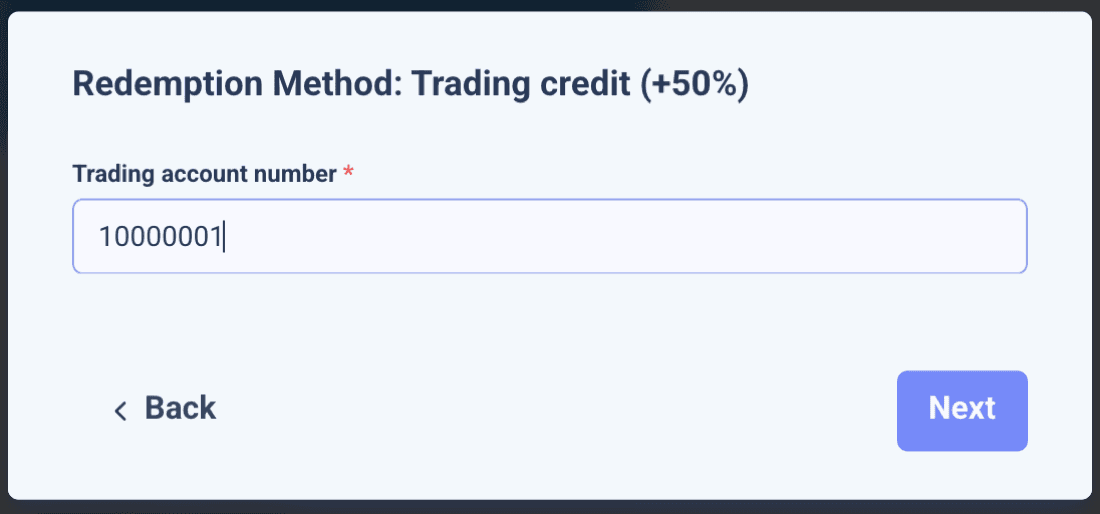
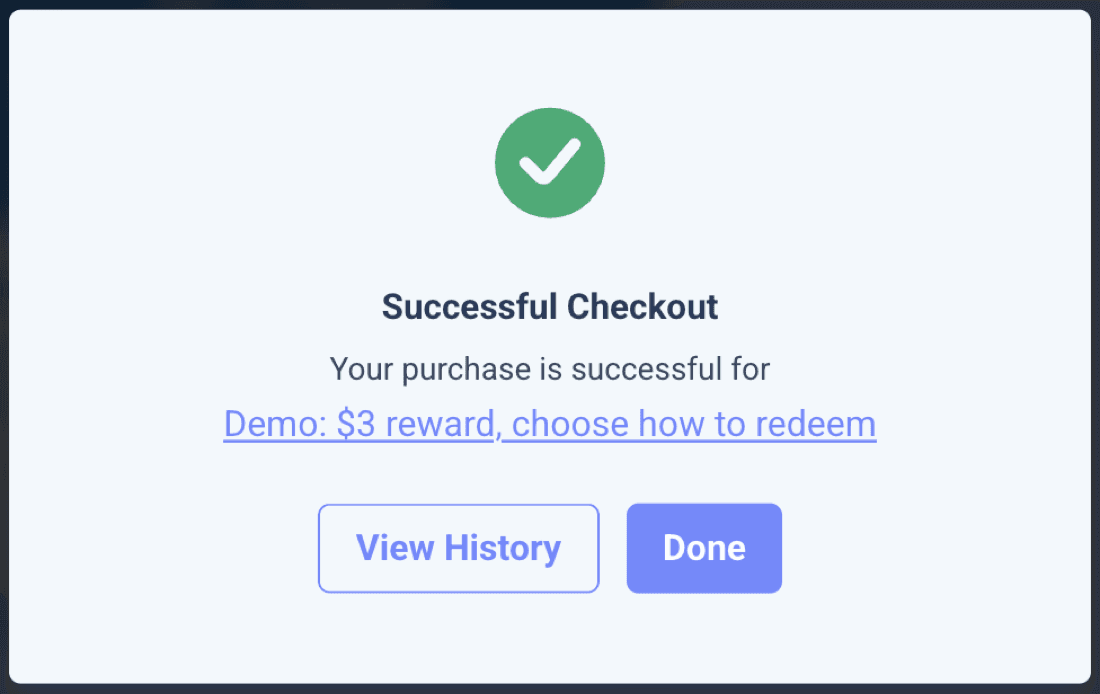
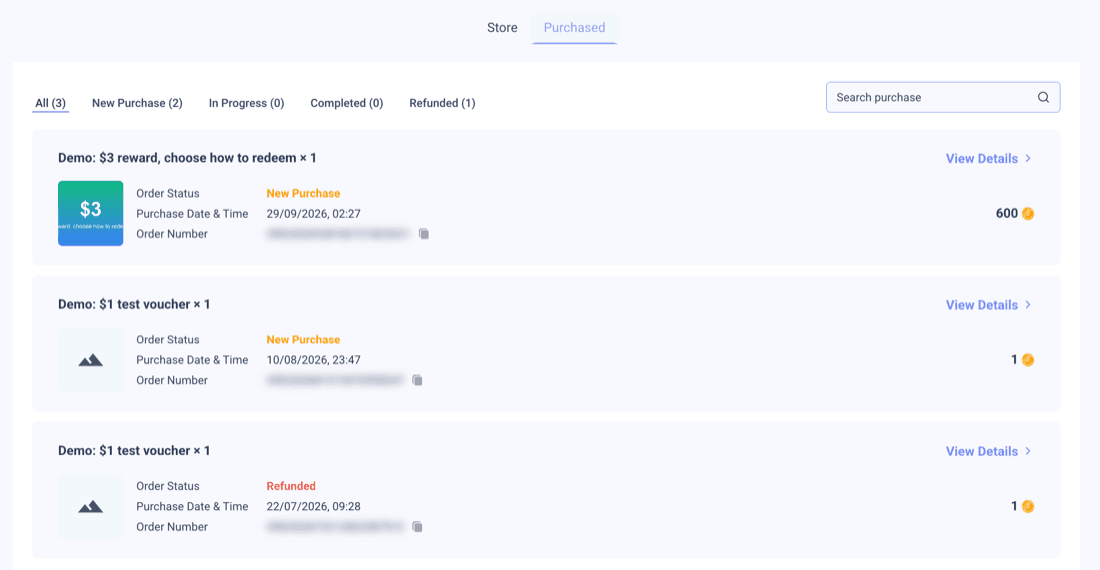
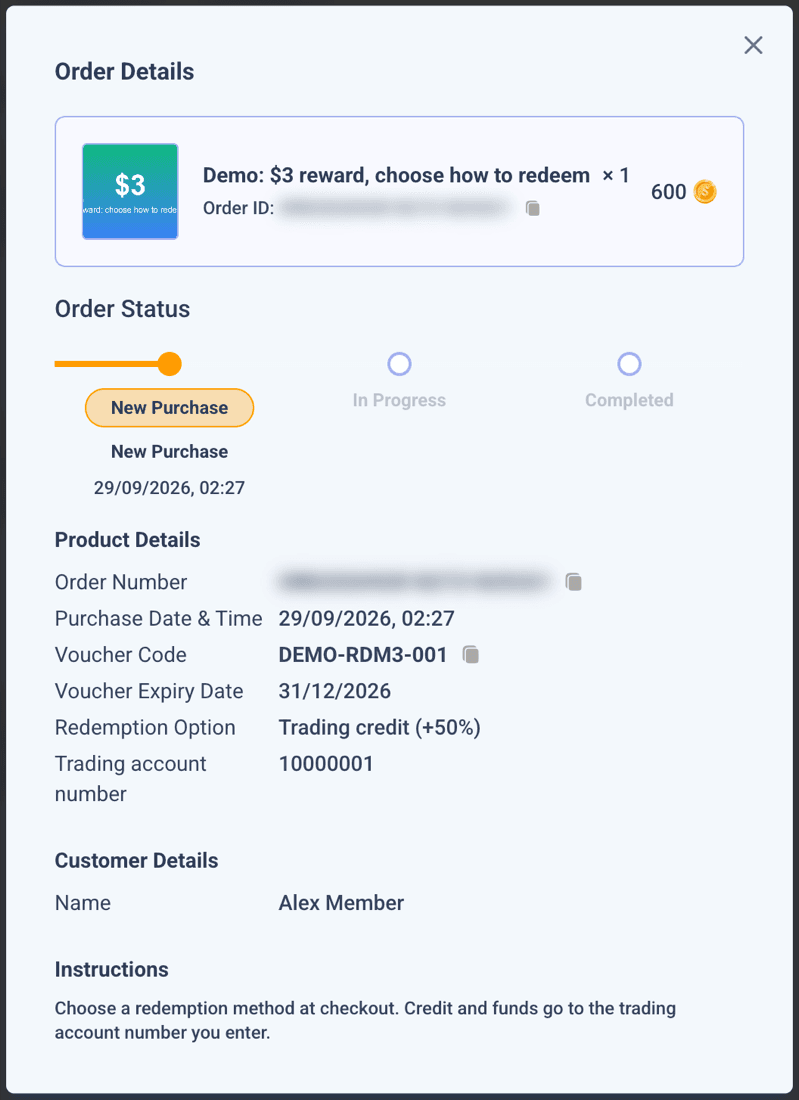
Screenshots from a test community with synthetic products and redacted member details. Method names are broker-written labels; the Store does not calculate the credit amount.
Members may also see Coming Soon, Purchase Limit Reached, a spending-cap message, Not Eligible for a method, or a payment failure with Try Again. Disabled purchase buttons explain why they cannot buy.
What you control#
Configure the Store at three levels: Store settings, categories and products. A product can sit outside a category.
Store settings
| Setting | What it does |
|---|---|
| Enable Store and Store Name | Switch the Store on and set the title and description members see. |
| Banner Display | Banner images for light and dark themes. |
| Custom Currency | Rename Coins in the Store and choose your own icons. |
| Redemption Methods | Methods that categories and products can inherit or replace. |
| Enable spending cap | Limit total coin spending each reset period. Set a timezone, interval in days, weeks or months, and a coin amount. |
| Product Statuses | Custom order statuses inside New Purchase, In Progress, Completed and Refunded. |
| Widget Setting | Set how the Store is embedded on your site, including domains, size and theme. |
Category
| Setting | What it does |
|---|---|
| Product Category View | Full View shows all products; Preview shows one row with View More. |
| Coming Soon | Shows products with prices hidden and purchasing disabled. |
| Category Access | Give members, roles or tags Full Access, View Only or Cannot View, with optional purchase limits. |
| Default Purchase Status | Sets the starting status for orders in this category unless a product overrides it. |
| Redemption Method | Follow Store settings or provide methods that products in this category inherit. |
| Product Refund | Choose refundable statuses, the Refunded status and whether requests need approval. |
| Enable spending cap | Limit coin spending inside this category as well as any Store-wide cap. |
Product
| Setting | What it does |
|---|---|
| Price and Discount Settings | Set a coin price, including zero for a free product. An optional discount has a start and end date; it applies only when its price is above zero and below the normal price. |
| Voucher Codes | Upload codes as stock after saving the product. Every purchase consumes one valid code, even for trading credit and funds. |
| Display Remaining Quantity | Show the remaining stock to members. |
| Highlight Expiring Vouchers | Flag codes nearing their expiry date. |
| Product Access and Special Price | Override category access for members, roles or tags. Set a special price or purchase limit where needed. |
| Redemption Methods and Product Fields | Inherit methods or set custom ones. Each method can collect fields and check eligibility using member data or a connected broker service. |
| Product Purchase Status and Product Refund | Override the starting order status and refund rules. |
How it works#
Building the catalogue
- Price products in coins from your chosen coin value. At the example $0.005 per coin, a $50 item is 10,000 coins and takes 100 FX lots to earn at 100 coins per lot.
- Discounted prices apply inside their date window. Category or product access can show, hide or restrict purchasing. A product rule overrides its category rule.
- Voucher codes are the stock. Each purchase takes one active, unexpired code; the standard Store flow issues the earliest-expiring valid code first. When no unexpired voucher codes remain, the product is out of stock.
- A purchase must fit applicable Store and category spending caps. A coin price that exceeds the remaining allowance is blocked. These caps limit coins spent, not cash fulfilment or credit exposure.
- Purchase limits use calendar blocks. Weeks start Monday and years reset on 1 January. Within an applicable permission scope, the most generous matching limit applies.
What a code represents for credit or funds
For example, upload a unique reference code for each available credit or funds purchase. After checkout, the member sees that code in Order Details; the code alone does not grant money to a trading account. Your fulfilment needs the order ID, chosen method, configured amount and the eligible account field collected at checkout. Use the order ID to avoid a second grant if processing is retried.
Stock, access and eligibility details
Save a product before loading voucher codes. Upload codes as text or a CSV or spreadsheet with code and expiry. A product can inherit methods from its category or Store settings, or use custom methods. A member can see Checking Eligibility, then Eligible or Not Eligible when a method has a configured check. Have your integration team confirm what is checked again at purchase.
A member who matches several purchase-limit rules within the applicable access level gets the most generous one. An unlimited Full Access rule removes that limit. Use whole-list role or tag changes carefully when maintaining access groups.
Redemption methods
Methods are labels and data-collection choices you write. A product has one coin price, shared by every method on it. The Store does not grant trading credit or funds from that label.
| Method | What it does |
|---|---|
| Delivery or voucher | The member gets an item or code. Your cost is the item, supplier cost, shipping and handling. |
| Trading credit | The member gets a broker-defined credit amount. A $100 item can offer $150 credit at the same 20,000 coin price in this example. Your cost depends on your credit programme and fulfilment arrangement. Estimate it in the planner. |
| Trading funds | Your integration grants withdrawable funds. Compare the cash granted and any fulfilment costs with the other methods before setting access and limits. |
Use one product with several methods when every choice should cost the same coins. Use separate products for different coin prices, purchase limits or access rules.
- The member selects a method, fills in its fields and passes any eligibility check.
- The Store deducts coins, consumes one voucher code, creates the order and sends a purchase email.
- Your integration maps the chosen method to a reward, grants credit or funds when relevant, then updates the order after fulfilment.
The grant follows the purchase
Coin deduction and the broker grant are separate operations. Check whether the grant succeeded before retrying or refunding, and prevent duplicate grants for the same order. Store checkout itself does not grant trading credit or funds.
Orders and refunds
- Orders use four stages: New Purchase, In Progress, Completed and Refunded. You can add statuses inside them. A new order uses the product override, then category default, then New Purchase.
- The Store does not confirm external fulfilment automatically. Your team or integration updates the status when it is confirmed.
- You can allow member refund requests, select eligible statuses and choose approval or automatic refund.
- A successful coin refund returns the price paid once per order. A Refunded-category order no longer counts toward the purchase limit. The Store attempts to restore an unexpired voucher and adjusts spending-cap usage for the original purchase period. Check the order, stock and cap after refund.
- Moving an order out of Refunded does not take the coins back. Your integration must reverse any broker-side credit or funds already granted.
API-managed refunds
Request the coin refund in the first change to a Refunded status. Changing the status alone does not return coins. Once the order has been in a Refunded status, a later coin-refund request returns no coins. Check the member's balance as well as the order status.
Order-status notes are member-visible
Notes sent with an order-status update appear in the order's status history. Write them for the member to read and keep internal handling notes in your own system.
Ways to use it#
Seven example catalogue patterns use the same planning coin value: $0.005 per coin, or 200 coins per $1.
Launch
Tiered catalogue ladder
1,000 to 100,000example coin prices
- Offer early and aspirational rewards.
- Example values: $5, $25, $100, $500.
- Watch redemptions and fulfilment costs.
Suits A Store with rewards at several earning levels.
Credit
Credit-first catalogue
$150credit for 20,000 coins
- Show credit products prominently.
- Collect an eligible trading account.
- Set purchase limits and enforce credit exposure in your integration.
Suits Teams with a credit fulfilment integration.
Choice
One item, three ways
20,000coins for every method
- Offer delivery, credit and funds.
- Members choose one method.
- Estimate the method mix and cost before launch.
Suits Members who value different rewards.
Campaign
Limited drops
200 codesfor a $50 item
- Load a fixed first batch of codes.
- Show remaining stock.
- Initial fulfilment is $10,000 before shipping at $50 each.
Suits Limited launches and seasonal offers.
Watch Refunded codes can return to stock. Reconcile external fulfilment before reissuing them.
Sale
Discount windows
16,000instead of 20,000 coins
- Set a start and end date.
- Show the lower coin price during the window.
- Plan any change in redemption timing as an assumption.
Suits Time-limited catalogue offers.
VIP
Role-gated VIP shelf
2,000coins below standard price
- Give VIP roles access to a category.
- Use a special price and purchase limit.
- The example discount equals $10 at this coin value.
Suits Tiered loyalty programmes.
Partners
Voucher partnerships
$22example cost of a $25 code
- Upload partner codes as stock.
- Add redemption instructions.
- Watch unsold code expiry and refunds.
Suits Teams with supplier or partner vouchers.
Planning your economics#
At the example rates, $0.50 of reward value per FX lot makes a $50 item cost 10,000 coins, or 100 FX lots and 100 Metals lots. Monthly issuance is 2,000,000 coins; 60% redemption means 1,200,000 coins spent. The example mix gives $4,500 credit face value and $3,000 cash out before shipping and modelled credit cost.
Planning tool · not the admin panel
Price your catalogue
Set a coin value, price items, then see the volume members need and the monthly spend your programme might create.
Same $100 face value in every method
20,000 coins for the product. Delivery $100.00, credit $100.00, funds $100.00.
Credit cost: $30.00 (your estimate) at the entered cost per $1 of credit.
$150 credit instead of a $100 item
20,000 coins for the product. Delivery $100.00, credit $150.00, funds $100.00.
Credit cost: $45.00 (your estimate) at the entered cost per $1 of credit.
Coin price for a $100 item
20,000 coins
$100.00 item value at $0.005 per coin
- FX lots to earn
- 200
- Delivery face value
- $100.00
- Credit face value
- $150.00
- Credit cost (your estimate)
- $45.00
- Funds face value
- $100.00
- Coins per $1 credit face
- 133.3
Coin price = item value divided by coin value, rounded to your chosen step. For a credit-only item, divide its face value by the credit uplift first.
| Item | Raw coins | Coin price | FX lots | Metals lots | Indices lots |
|---|---|---|---|---|---|
| $10 voucher | 2,000 | 2,000 | 20 | 20 | 40 |
| $50 item | 10,000 | 10,000 | 100 | 100 | 200 |
| $100 item | 20,000 | 20,000 | 200 | 200 | 400 |
| $25 trading credit | 3,333.3 | 3,350 | 33.5 | 33.5 | 67 |
| $150 trading credit | 20,000 | 20,000 | 200 | 200 | 400 |
| Credit face value | Raw coins | Rounded coin price |
|---|---|---|
| $10.00 | 1,333.3 | 1,350 |
| $25.00 | 3,333.3 | 3,350 |
| $50.00 | 6,666.7 | 6,650 |
| $100.00 | 13,333.3 | 13,350 |
| $150.00 | 20,000 | 20,000 |
| Method | Member receives | Coins per $1 face | Your cash cost |
|---|---|---|---|
| Delivery or voucher | $100.00 item | 200 | $100.00 including entered shipping |
| Trading credit | $150.00 credit | 133.3 | $45.00 (your estimate) |
| Trading funds | $100.00 funds | 200 | $100.00 |
Monthly method mix
| Measure | Amount |
|---|---|
| Coin value issued | $10,000.00 |
| Redeemed coin value | $6,000.00 |
| Credit face granted | $4,500.00 |
| Delivery cash | $1,800.00 |
| Funds cash | $1,200.00 |
| Cash out, excluding credit and shipping | $3,000.00 |
| Modelled credit cost | $1,350.00 |
| Entered shipping for monthly delivery orders | Not included (order count unknown) |
| Estimated cash cost including credit, excluding shipping and operating costs | $4,350.00 |
| Suggested monthly coin spending cap | 1,200,000 coins |
The Store spending cap limits coin spending. It does not cap shipping, credit exposure or external fulfilment costs. The monthly cash estimate includes shipping only when you enter a delivery order count; operating costs remain outside it.
Every rate and mix is an editable example assumption, not a platform default. The cash cost of credit is your estimate. Add delivery order count to include entered shipping in the monthly cash estimate.
Timing and limits#
- Coins are deducted and the order is created at purchase. Shipping, credit or funds follow your fulfilment process.
- Discounts apply only inside their start and end dates. Outside the window, the normal price applies.
- Purchase limits use calendar blocks; spending caps follow their configured timezone and interval. A completed refund adjusts usage in the original purchase period, which may differ from the current period.
- Retry the same purchase with unchanged details to avoid a second charge. A completed retry returns the original order; changed details are rejected.
- Store purchases consume the earliest-expiring available coins first. Refund processing puts coins into the earliest future expiry window. If none exists, the current expiry policy applies or the balance does not expire. A refund does not necessarily restore the original expiry date or grant a fresh full expiry period.
- The voucher code appears in Order Details after purchase and is hidden after a refund. Members can see later status changes in the Store; status changes do not send a member email.
Additional catalogue rules
Products can be free, sold at a discounted coin price during a window, or visible as Coming Soon with their price hidden. A member buys one unit per order. Buying twice creates two orders.
Not supported yet#
- Not supported
Cash checkout in the current Store purchase flow
Members pay the product's coin price.
- Not supported
More than one unit per order
Each order is quantity one. Buying twice creates two orders.
- Not supported
Different coin prices per method on one product
Use separate products if the methods need different prices or rules.
- Not supported
Stock without voucher codes
Every product needs codes as inventory, including trading credit and funds products.
- Not supported
Automatic trading-account fulfilment
Connect your own fulfilment system to order notifications or the widget callback, then update the order.
- Not supported
Automatic broker-side reversal on refund
Your systems must undo credit or funds already granted.
- Not supported
Built-in cumulative trading credit cap
Your integration must enforce any account-level or programme-wide credit exposure limit.
For your developers#
Share these published pages with the team maintaining your Store integration. Ask your success manager to confirm how your systems receive order notifications and the chosen method fields.
- Get Store configuration
- Update Store configuration
- List Store categories
- Create a Store category
- Update a Store category
- List products
- Create a product with vouchers
- Update product and append vouchers
- List redemption orders by community
- List redemption orders by member email
- Update redemption order status
- List redemption statuses
- Create a redemption status
- Get redemption transaction detail
- Update redemption instructions or voucher details
- Workflow webhooks
Example prizes, reward rates and planner figures are synthetic planning assumptions, not Returning.AI defaults or a rate card. Configuration limits and stated admin defaults are identified in the guide.